> ## Documentation Index
> Fetch the complete documentation index at: https://docs-staging-chore-actions-triggers-autoupdate.mintlify.site/llms.txt
> Use this file to discover all available pages before exploring further.

> Apprenez à configurer un formulaire de profil progressif à l’aide de Forms for Actions

# Cas d’utilisation : configurer un formulaire de profil progressif avec Forms

<Card title="Avant de commencer">
  1. Créez une [application machine-to-machine](/docs/fr-ca/get-started/auth0-overview/create-applications/machine-to-machine-apps) avec les portées suivantes activées :

  * `read:users`
  * `update:users`
  * `create:users`
  * `read:users_app_metadata`
  * `update:users_app_metadata`
  * `create:users_app_metadata`

  2. Ajoutez une [connexion Vault](/docs/fr-ca/customize/forms/vault) à l’aide des informations d’identification de l’application M2M.
</Card>

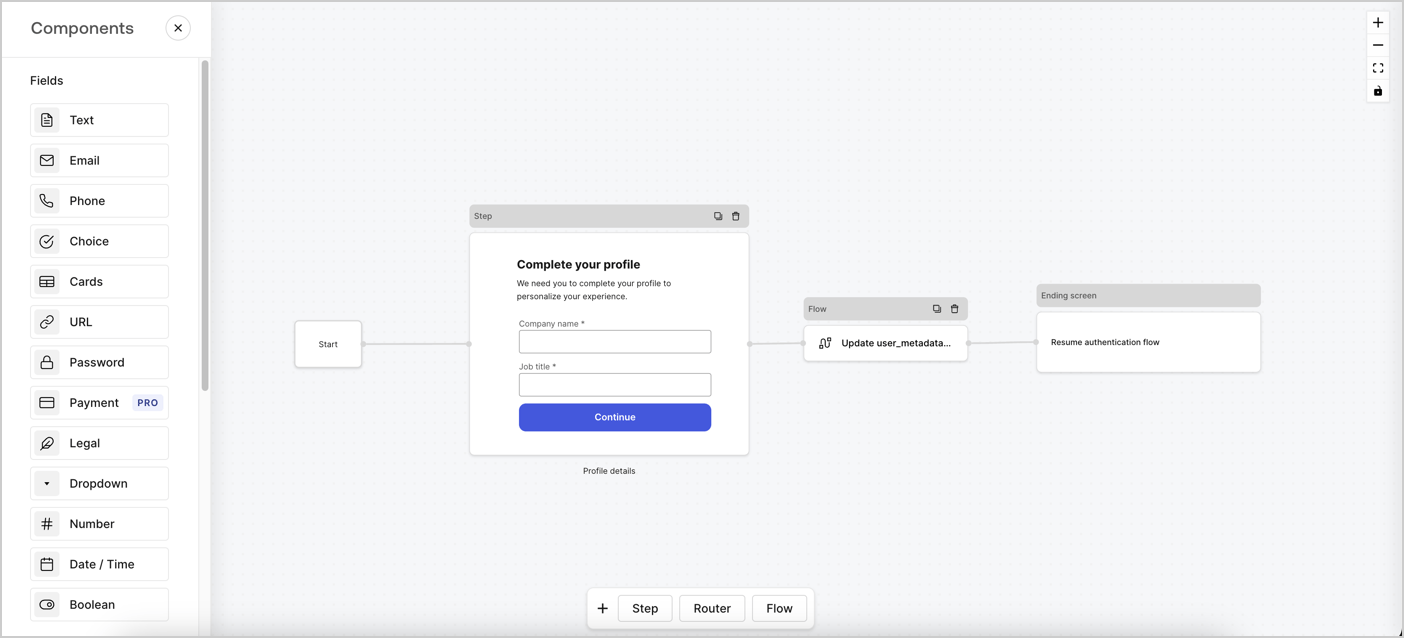
Forms for Actions vous permet de créer des flux de profil progressif afin de déterminer à quel moment demander aux utilisateurs de fournir les renseignements manquants, comme le nom de l’entreprise et le titre du poste, et de les stocker comme attributs `user_metadata`.
<Frame>
  <img src="https://mintcdn.com/docs-staging-chore-actions-triggers-autoupdate/HgsMLbiBuhb8-4S3/docs/images/cdy7uua7fh8z/xUx9YmnHvnAqL19JvNtNP/60dae88f893d4ebe8e3523421e960596/Progressive-profle-overview.png?fit=max&auto=format&n=HgsMLbiBuhb8-4S3&q=85&s=36c760ffae2e766053650139e908596d" alt="Dashboard > Actions > Forms > Form" data-og-width="1404" width="1404" data-og-height="638" height="638" data-path="docs/images/cdy7uua7fh8z/xUx9YmnHvnAqL19JvNtNP/60dae88f893d4ebe8e3523421e960596/Progressive-profle-overview.png" data-optimize="true" data-opv="3" srcset="https://mintcdn.com/docs-staging-chore-actions-triggers-autoupdate/HgsMLbiBuhb8-4S3/docs/images/cdy7uua7fh8z/xUx9YmnHvnAqL19JvNtNP/60dae88f893d4ebe8e3523421e960596/Progressive-profle-overview.png?w=280&fit=max&auto=format&n=HgsMLbiBuhb8-4S3&q=85&s=c0f4413f54525a10256b984a9d1d4b50 280w, https://mintcdn.com/docs-staging-chore-actions-triggers-autoupdate/HgsMLbiBuhb8-4S3/docs/images/cdy7uua7fh8z/xUx9YmnHvnAqL19JvNtNP/60dae88f893d4ebe8e3523421e960596/Progressive-profle-overview.png?w=560&fit=max&auto=format&n=HgsMLbiBuhb8-4S3&q=85&s=b81f4c40f773f5c1ff1d673e99269e61 560w, https://mintcdn.com/docs-staging-chore-actions-triggers-autoupdate/HgsMLbiBuhb8-4S3/docs/images/cdy7uua7fh8z/xUx9YmnHvnAqL19JvNtNP/60dae88f893d4ebe8e3523421e960596/Progressive-profle-overview.png?w=840&fit=max&auto=format&n=HgsMLbiBuhb8-4S3&q=85&s=c08589c1f07fd51ccb25cff705ff6ba4 840w, https://mintcdn.com/docs-staging-chore-actions-triggers-autoupdate/HgsMLbiBuhb8-4S3/docs/images/cdy7uua7fh8z/xUx9YmnHvnAqL19JvNtNP/60dae88f893d4ebe8e3523421e960596/Progressive-profle-overview.png?w=1100&fit=max&auto=format&n=HgsMLbiBuhb8-4S3&q=85&s=fa9b6d2c75b6955ef52b846ef9f873f1 1100w, https://mintcdn.com/docs-staging-chore-actions-triggers-autoupdate/HgsMLbiBuhb8-4S3/docs/images/cdy7uua7fh8z/xUx9YmnHvnAqL19JvNtNP/60dae88f893d4ebe8e3523421e960596/Progressive-profle-overview.png?w=1650&fit=max&auto=format&n=HgsMLbiBuhb8-4S3&q=85&s=df37b3fd7a6c2120d8b50b8ca12580d5 1650w, https://mintcdn.com/docs-staging-chore-actions-triggers-autoupdate/HgsMLbiBuhb8-4S3/docs/images/cdy7uua7fh8z/xUx9YmnHvnAqL19JvNtNP/60dae88f893d4ebe8e3523421e960596/Progressive-profle-overview.png?w=2500&fit=max&auto=format&n=HgsMLbiBuhb8-4S3&q=85&s=889b16fc424db8e07abc96e3657069da 2500w" />
</Frame>

Les sections ci-dessous expliquent comment créer un formulaire de profil progressif à l’aide de nœuds et de flux, ainsi que les étapes à suivre pour ajouter votre formulaire à une [Action Post Login](/docs/fr-ca/customize/actions/explore-triggers/signup-and-login-triggers/login-trigger).

<h2 id="create-a-form-from-scratch">
  Créer un formulaire à partir de zéro
</h2>

Suivez ces étapes pour créer un formulaire et recueillir des renseignements :

1. Ouvrez l’éditeur de formulaires en sélectionnant **Auth0 Dashboard > Actions > Forms.**
2. Sélectionnez **Create Form** > **Start from scratch**.

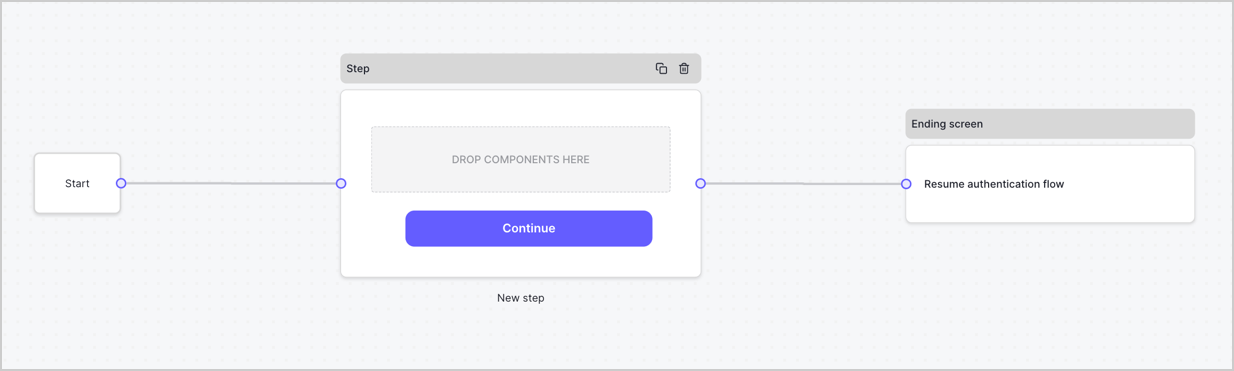
Par défaut, un nouveau formulaire contient un nœud Start, un nœud Step et un nœud Ending screen.
<Frame>
  <img src="https://mintcdn.com/docs-staging-chore-actions-triggers-autoupdate/2875Xj6H216hiJJY/docs/images/cdy7uua7fh8z/2TZ9jSjgEcARFpULI6hz4R/a4319a1bd482f2ee5cc23100fdb2f42c/New-form-Forms-for-action-use-case.png?fit=max&auto=format&n=2875Xj6H216hiJJY&q=85&s=1d6581c07d1d39ee5d8a108bcb617456" alt="Dashboard > Forms > Cas d’utilisation > Formulaire" data-og-width="1234" width="1234" data-og-height="371" height="371" data-path="docs/images/cdy7uua7fh8z/2TZ9jSjgEcARFpULI6hz4R/a4319a1bd482f2ee5cc23100fdb2f42c/New-form-Forms-for-action-use-case.png" data-optimize="true" data-opv="3" srcset="https://mintcdn.com/docs-staging-chore-actions-triggers-autoupdate/2875Xj6H216hiJJY/docs/images/cdy7uua7fh8z/2TZ9jSjgEcARFpULI6hz4R/a4319a1bd482f2ee5cc23100fdb2f42c/New-form-Forms-for-action-use-case.png?w=280&fit=max&auto=format&n=2875Xj6H216hiJJY&q=85&s=e722854e03a9db8e9f6e7ba5a47eda0a 280w, https://mintcdn.com/docs-staging-chore-actions-triggers-autoupdate/2875Xj6H216hiJJY/docs/images/cdy7uua7fh8z/2TZ9jSjgEcARFpULI6hz4R/a4319a1bd482f2ee5cc23100fdb2f42c/New-form-Forms-for-action-use-case.png?w=560&fit=max&auto=format&n=2875Xj6H216hiJJY&q=85&s=94b54de13172631690500f2aa1c86cf2 560w, https://mintcdn.com/docs-staging-chore-actions-triggers-autoupdate/2875Xj6H216hiJJY/docs/images/cdy7uua7fh8z/2TZ9jSjgEcARFpULI6hz4R/a4319a1bd482f2ee5cc23100fdb2f42c/New-form-Forms-for-action-use-case.png?w=840&fit=max&auto=format&n=2875Xj6H216hiJJY&q=85&s=ba89f27421d0ed1883829e887a88c87d 840w, https://mintcdn.com/docs-staging-chore-actions-triggers-autoupdate/2875Xj6H216hiJJY/docs/images/cdy7uua7fh8z/2TZ9jSjgEcARFpULI6hz4R/a4319a1bd482f2ee5cc23100fdb2f42c/New-form-Forms-for-action-use-case.png?w=1100&fit=max&auto=format&n=2875Xj6H216hiJJY&q=85&s=84ff503dab747d7b39e01501441ec1ed 1100w, https://mintcdn.com/docs-staging-chore-actions-triggers-autoupdate/2875Xj6H216hiJJY/docs/images/cdy7uua7fh8z/2TZ9jSjgEcARFpULI6hz4R/a4319a1bd482f2ee5cc23100fdb2f42c/New-form-Forms-for-action-use-case.png?w=1650&fit=max&auto=format&n=2875Xj6H216hiJJY&q=85&s=0a52f9419ece80b5eae78624b51d12eb 1650w, https://mintcdn.com/docs-staging-chore-actions-triggers-autoupdate/2875Xj6H216hiJJY/docs/images/cdy7uua7fh8z/2TZ9jSjgEcARFpULI6hz4R/a4319a1bd482f2ee5cc23100fdb2f42c/New-form-Forms-for-action-use-case.png?w=2500&fit=max&auto=format&n=2875Xj6H216hiJJY&q=85&s=dc92210c9ce5f28252dd575f57d7733b 2500w" />
</Frame>

<h3 id="configure-the-step-node">
  Configurer le nœud Step
</h3>

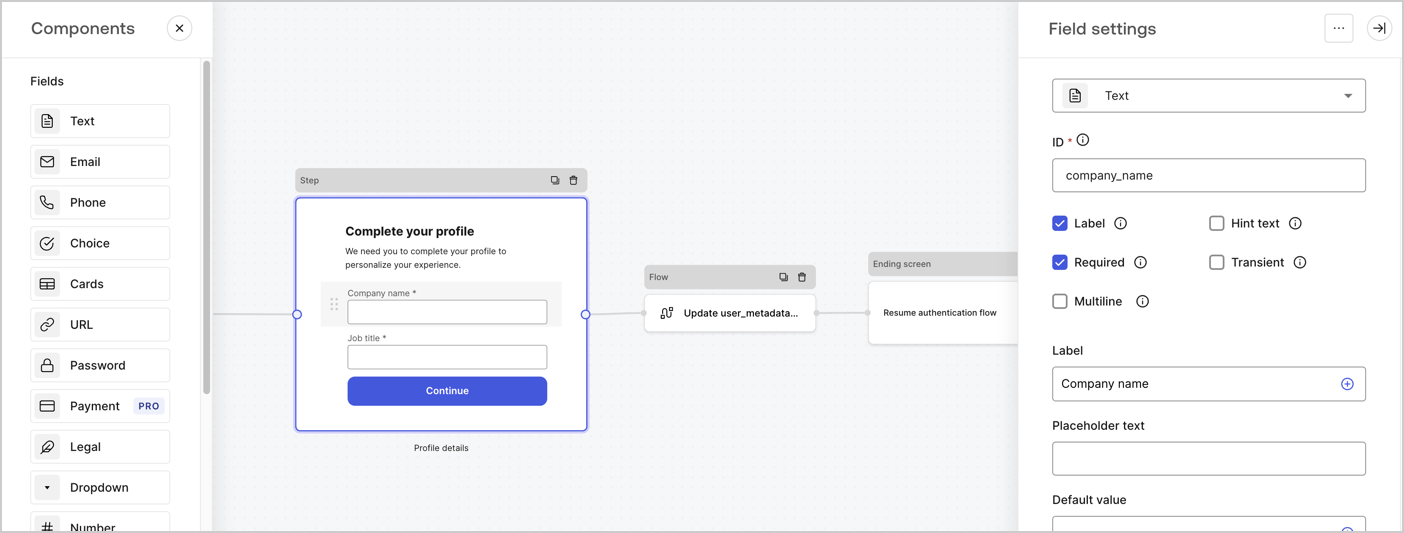
Le nœud Step est l’interface graphique que voient les utilisateurs. Ajoutez des [champs](/docs/fr-ca/customize/forms/nodes-and-components) au nœud Step pour recueillir le nom de l’entreprise et l’intitulé du poste de l’utilisateur en suivant ces étapes :

1. Faites glisser un champ **Rich text** du **menu Components** vers le nœud **Step**.

   * **Rich text** : Saisissez un message personnalisé.

     * **Exemple** : `Complétez votre profil ! Nous avons besoin de quelques renseignements pour personnaliser votre expérience.`
   * Sélectionnez **Enregistrer**.
2. Faites glisser un champ **Text** vers le nœud **Step**.

   * **ID** : Saisissez `company_name`.
   * **Label** : Cochez la case.
   * **Label** : Saisissez `Nom de l’entreprise`.
   * **Required** : Cochez la case.
   * Sélectionnez **Enregistrer**.
3. Faites glisser un champ **Text** vers le nœud **Step**.

   1. **ID** : Saisissez `job_title`.
   2. **Label** : Saisissez `Titre du poste`.
   3. **Label** : Cochez la case.
   4. **Required** : Cochez la case.
   5. Sélectionnez **Enregistrer**.
4. Sélectionnez **Publier** pour enregistrer.
<Frame>
  <img src="https://mintcdn.com/docs-staging-chore-actions-triggers-autoupdate/Ovva-2VpgZv5LVbs/docs/images/cdy7uua7fh8z/6H1lRzwKyYioQyQJ9MtIoM/aa248e92fc028a68a5b92ff361a11644/progressive-profile-step.png?fit=max&auto=format&n=Ovva-2VpgZv5LVbs&q=85&s=6a67048c78cb03f20938ca226785f56b" alt="Dashboard > Actions > Forms > Form > nœud Step" data-og-width="1404" width="1404" data-og-height="533" height="533" data-path="docs/images/cdy7uua7fh8z/6H1lRzwKyYioQyQJ9MtIoM/aa248e92fc028a68a5b92ff361a11644/progressive-profile-step.png" data-optimize="true" data-opv="3" srcset="https://mintcdn.com/docs-staging-chore-actions-triggers-autoupdate/Ovva-2VpgZv5LVbs/docs/images/cdy7uua7fh8z/6H1lRzwKyYioQyQJ9MtIoM/aa248e92fc028a68a5b92ff361a11644/progressive-profile-step.png?w=280&fit=max&auto=format&n=Ovva-2VpgZv5LVbs&q=85&s=a4f88d5962a61883f6ee401e0926aa48 280w, https://mintcdn.com/docs-staging-chore-actions-triggers-autoupdate/Ovva-2VpgZv5LVbs/docs/images/cdy7uua7fh8z/6H1lRzwKyYioQyQJ9MtIoM/aa248e92fc028a68a5b92ff361a11644/progressive-profile-step.png?w=560&fit=max&auto=format&n=Ovva-2VpgZv5LVbs&q=85&s=80c5dfad996c04e6cdaf108cd920a5fb 560w, https://mintcdn.com/docs-staging-chore-actions-triggers-autoupdate/Ovva-2VpgZv5LVbs/docs/images/cdy7uua7fh8z/6H1lRzwKyYioQyQJ9MtIoM/aa248e92fc028a68a5b92ff361a11644/progressive-profile-step.png?w=840&fit=max&auto=format&n=Ovva-2VpgZv5LVbs&q=85&s=f5fe18b08f756c3ff8e9cff97d9f9a21 840w, https://mintcdn.com/docs-staging-chore-actions-triggers-autoupdate/Ovva-2VpgZv5LVbs/docs/images/cdy7uua7fh8z/6H1lRzwKyYioQyQJ9MtIoM/aa248e92fc028a68a5b92ff361a11644/progressive-profile-step.png?w=1100&fit=max&auto=format&n=Ovva-2VpgZv5LVbs&q=85&s=b436423627f2b36aef163ec589e4516e 1100w, https://mintcdn.com/docs-staging-chore-actions-triggers-autoupdate/Ovva-2VpgZv5LVbs/docs/images/cdy7uua7fh8z/6H1lRzwKyYioQyQJ9MtIoM/aa248e92fc028a68a5b92ff361a11644/progressive-profile-step.png?w=1650&fit=max&auto=format&n=Ovva-2VpgZv5LVbs&q=85&s=c255a953544b2ad6dc2c29bec1ebdf66 1650w, https://mintcdn.com/docs-staging-chore-actions-triggers-autoupdate/Ovva-2VpgZv5LVbs/docs/images/cdy7uua7fh8z/6H1lRzwKyYioQyQJ9MtIoM/aa248e92fc028a68a5b92ff361a11644/progressive-profile-step.png?w=2500&fit=max&auto=format&n=Ovva-2VpgZv5LVbs&q=85&s=46f142a351e88f0ff24147b9e5a61978 2500w" />
</Frame>

<h3 id="configure-the-flow-node">
  Configurer le nœud de flux
</h3>

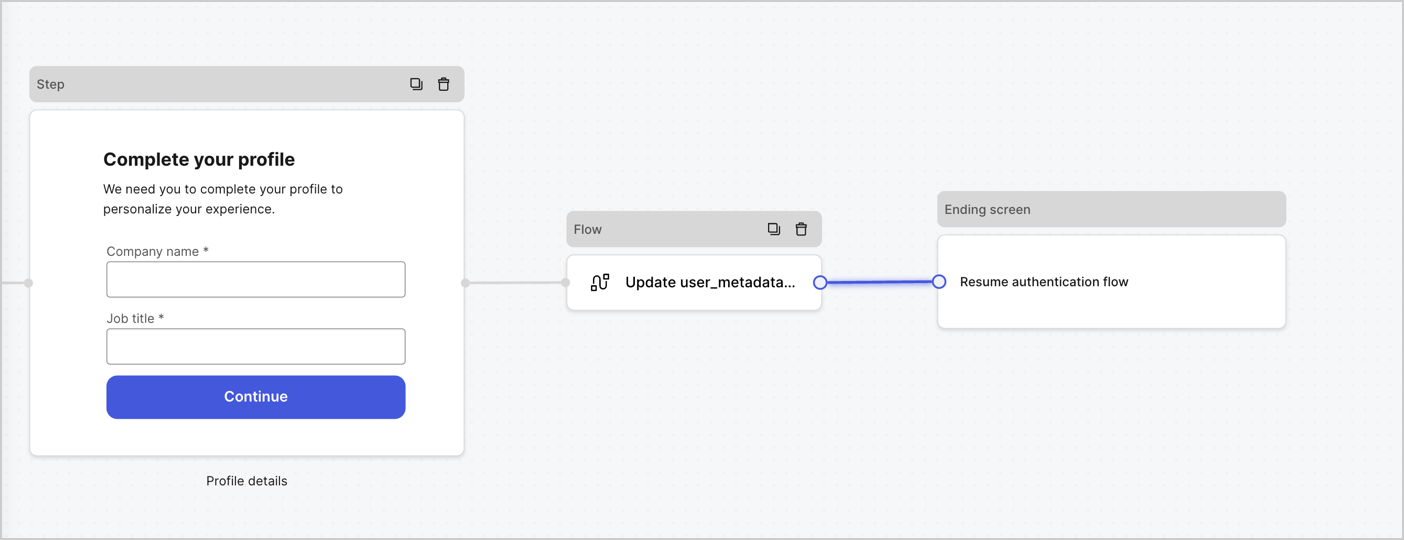
Ajoutez un nœud **Flow** après le nœud **Step** pour mettre à jour `user_metadata` et reprendre le flux d’authentification en suivant ces étapes :

1. Sélectionnez **Flow** au bas de l’éditeur de formulaires.
2. Supprimez le lien existant entre les nœuds **Step** et **Ending Screen**.
3. Sélectionnez le nouveau **Flow** > **Click to add a flow** > **Create a new flow.**

   * Saisissez `Update user_metadata` dans le champ **Name**.
   * Sélectionnez **Create**.
   * Sélectionnez **Save**.
4. Reliez le nœud **Flow** aux nœuds **Step** et **Ending Screen**, comme illustré ci-dessous.
5. Sélectionnez **Publish** pour enregistrer.
<Frame>
  <img src="https://mintcdn.com/docs-staging-chore-actions-triggers-autoupdate/7a7j0c2HP7mu6vI_/docs/images/cdy7uua7fh8z/5C91DaWn4LGtJT9BF87ssu/095171d0c452a287c44bfde12fd6d13f/link-nodes.png?fit=max&auto=format&n=7a7j0c2HP7mu6vI_&q=85&s=f606dc6a29f1a221f48eab48d8b34248" alt="Dashboard > Actions > Forms > Form" data-og-width="1404" width="1404" data-og-height="540" height="540" data-path="docs/images/cdy7uua7fh8z/5C91DaWn4LGtJT9BF87ssu/095171d0c452a287c44bfde12fd6d13f/link-nodes.png" data-optimize="true" data-opv="3" srcset="https://mintcdn.com/docs-staging-chore-actions-triggers-autoupdate/7a7j0c2HP7mu6vI_/docs/images/cdy7uua7fh8z/5C91DaWn4LGtJT9BF87ssu/095171d0c452a287c44bfde12fd6d13f/link-nodes.png?w=280&fit=max&auto=format&n=7a7j0c2HP7mu6vI_&q=85&s=178306cc6fcad82c580a2fb1f00eff4e 280w, https://mintcdn.com/docs-staging-chore-actions-triggers-autoupdate/7a7j0c2HP7mu6vI_/docs/images/cdy7uua7fh8z/5C91DaWn4LGtJT9BF87ssu/095171d0c452a287c44bfde12fd6d13f/link-nodes.png?w=560&fit=max&auto=format&n=7a7j0c2HP7mu6vI_&q=85&s=103c04e414fee3192d8564b296c25236 560w, https://mintcdn.com/docs-staging-chore-actions-triggers-autoupdate/7a7j0c2HP7mu6vI_/docs/images/cdy7uua7fh8z/5C91DaWn4LGtJT9BF87ssu/095171d0c452a287c44bfde12fd6d13f/link-nodes.png?w=840&fit=max&auto=format&n=7a7j0c2HP7mu6vI_&q=85&s=4ed4dbaf1dd33b98eacb789caf5bb782 840w, https://mintcdn.com/docs-staging-chore-actions-triggers-autoupdate/7a7j0c2HP7mu6vI_/docs/images/cdy7uua7fh8z/5C91DaWn4LGtJT9BF87ssu/095171d0c452a287c44bfde12fd6d13f/link-nodes.png?w=1100&fit=max&auto=format&n=7a7j0c2HP7mu6vI_&q=85&s=241812f83520880f3dd044134962822e 1100w, https://mintcdn.com/docs-staging-chore-actions-triggers-autoupdate/7a7j0c2HP7mu6vI_/docs/images/cdy7uua7fh8z/5C91DaWn4LGtJT9BF87ssu/095171d0c452a287c44bfde12fd6d13f/link-nodes.png?w=1650&fit=max&auto=format&n=7a7j0c2HP7mu6vI_&q=85&s=6a1ffc4dc5bbdb25dc0b5f84f6b47de8 1650w, https://mintcdn.com/docs-staging-chore-actions-triggers-autoupdate/7a7j0c2HP7mu6vI_/docs/images/cdy7uua7fh8z/5C91DaWn4LGtJT9BF87ssu/095171d0c452a287c44bfde12fd6d13f/link-nodes.png?w=2500&fit=max&auto=format&n=7a7j0c2HP7mu6vI_&q=85&s=916328728553cd364174b076e289b3b2 2500w" />
</Frame>

Ajoutez une action Auth0 **Update user** au flux en suivant ces étapes :

1. Sélectionnez le flux **Update user\_metadata**, puis sélectionnez **Edit Flow** pour ouvrir l’éditeur de flux dans un nouvel onglet.
2. Sous l’action **Start**, sélectionnez l’icône **+** pour ajouter une action **Update user**. Remplissez les champs ci-dessous, puis sélectionnez **Save** pour continuer.

   * **Connection** : Dans la liste déroulante, sélectionnez la connexion Vault de votre application M2M.

   * **User ID** : Saisissez `{{context.user.user_id}}`.

   * **Body** : Copiez-collez le code suivant pour mettre à jour `user_metadata` avec les propriétés `job_title` et `company_name`.

     ```json lines theme={null}
     {
        "user_metadata": {
           "job_title": "{{fields.job_title}}",
           "company_name": "{{fields.company_name}}"
        }
     }
     ```

   * Sélectionnez **Save**.
3. Sélectionnez **Publish** pour enregistrer.

<Frame>
  <img src="https://mintcdn.com/docs-staging-chore-actions-triggers-autoupdate/8zoqTdl8NtorhrHm/docs/images/cdy7uua7fh8z/65Jx4W5oIZJyyvA8z4HqIx/0661b1a8ca6361c54fc4fef07ba59f0b/update-user.png?fit=max&auto=format&n=8zoqTdl8NtorhrHm&q=85&s=4a8d33aa263890a0f351da9f66309758" alt="Dashboard > Actions > Forms > Flows" data-og-width="1404" width="1404" data-og-height="244" height="244" data-path="docs/images/cdy7uua7fh8z/65Jx4W5oIZJyyvA8z4HqIx/0661b1a8ca6361c54fc4fef07ba59f0b/update-user.png" data-optimize="true" data-opv="3" srcset="https://mintcdn.com/docs-staging-chore-actions-triggers-autoupdate/8zoqTdl8NtorhrHm/docs/images/cdy7uua7fh8z/65Jx4W5oIZJyyvA8z4HqIx/0661b1a8ca6361c54fc4fef07ba59f0b/update-user.png?w=280&fit=max&auto=format&n=8zoqTdl8NtorhrHm&q=85&s=8cdd3573a50c0908db8141c6502f034b 280w, https://mintcdn.com/docs-staging-chore-actions-triggers-autoupdate/8zoqTdl8NtorhrHm/docs/images/cdy7uua7fh8z/65Jx4W5oIZJyyvA8z4HqIx/0661b1a8ca6361c54fc4fef07ba59f0b/update-user.png?w=560&fit=max&auto=format&n=8zoqTdl8NtorhrHm&q=85&s=c1c1fd2a32f3baba90b6e2650743dc26 560w, https://mintcdn.com/docs-staging-chore-actions-triggers-autoupdate/8zoqTdl8NtorhrHm/docs/images/cdy7uua7fh8z/65Jx4W5oIZJyyvA8z4HqIx/0661b1a8ca6361c54fc4fef07ba59f0b/update-user.png?w=840&fit=max&auto=format&n=8zoqTdl8NtorhrHm&q=85&s=086f39055e7298299d06cd01f2d69571 840w, https://mintcdn.com/docs-staging-chore-actions-triggers-autoupdate/8zoqTdl8NtorhrHm/docs/images/cdy7uua7fh8z/65Jx4W5oIZJyyvA8z4HqIx/0661b1a8ca6361c54fc4fef07ba59f0b/update-user.png?w=1100&fit=max&auto=format&n=8zoqTdl8NtorhrHm&q=85&s=1fb5835e81aeab39d610f92fd9ec42f0 1100w, https://mintcdn.com/docs-staging-chore-actions-triggers-autoupdate/8zoqTdl8NtorhrHm/docs/images/cdy7uua7fh8z/65Jx4W5oIZJyyvA8z4HqIx/0661b1a8ca6361c54fc4fef07ba59f0b/update-user.png?w=1650&fit=max&auto=format&n=8zoqTdl8NtorhrHm&q=85&s=aa65f14c26336f8b435d9a7bafaf168b 1650w, https://mintcdn.com/docs-staging-chore-actions-triggers-autoupdate/8zoqTdl8NtorhrHm/docs/images/cdy7uua7fh8z/65Jx4W5oIZJyyvA8z4HqIx/0661b1a8ca6361c54fc4fef07ba59f0b/update-user.png?w=2500&fit=max&auto=format&n=8zoqTdl8NtorhrHm&q=85&s=377ea91cc3bae33ecea21dae50558aa9 2500w" />
</Frame>

<h3 id="retrieve-the-form-render-code">
  Récupérer le code de rendu du formulaire
</h3>

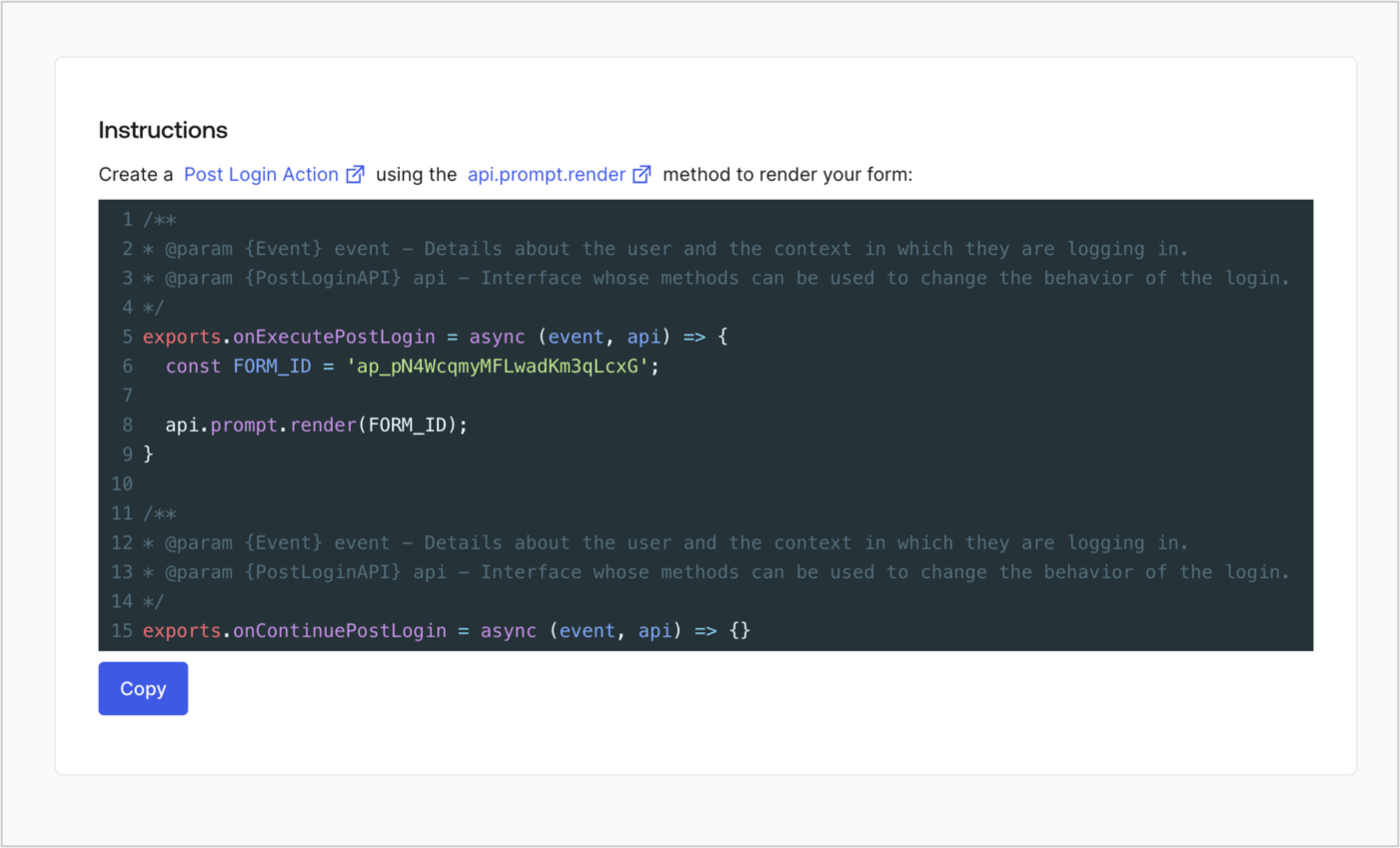
Récupérez le code de rendu du formulaire pour l’afficher à l’aide d’une Action Post Login personnalisée en suivant ces étapes :

* Dans l’éditeur de formulaires, sélectionnez **`<> Render`**.
* Sélectionnez **Copy**.
<Frame>
  <img src="https://mintcdn.com/docs-staging-chore-actions-triggers-autoupdate/OzH0n0WvmYgnSH8x/docs/images/cdy7uua7fh8z/2EIUzc539sq9lwoTKbjoJv/496a864c0fc44a782c9cadca119dbfb0/embed.png?fit=max&auto=format&n=OzH0n0WvmYgnSH8x&q=85&s=00b0a20cb878010049ad112bdd5bd3a9" alt="Dashboard > Actions > Forms > Form > Embed" data-og-width="1400" width="1400" data-og-height="848" height="848" data-path="docs/images/cdy7uua7fh8z/2EIUzc539sq9lwoTKbjoJv/496a864c0fc44a782c9cadca119dbfb0/embed.png" data-optimize="true" data-opv="3" srcset="https://mintcdn.com/docs-staging-chore-actions-triggers-autoupdate/OzH0n0WvmYgnSH8x/docs/images/cdy7uua7fh8z/2EIUzc539sq9lwoTKbjoJv/496a864c0fc44a782c9cadca119dbfb0/embed.png?w=280&fit=max&auto=format&n=OzH0n0WvmYgnSH8x&q=85&s=097692671343eae8df931c3c66a9ec3e 280w, https://mintcdn.com/docs-staging-chore-actions-triggers-autoupdate/OzH0n0WvmYgnSH8x/docs/images/cdy7uua7fh8z/2EIUzc539sq9lwoTKbjoJv/496a864c0fc44a782c9cadca119dbfb0/embed.png?w=560&fit=max&auto=format&n=OzH0n0WvmYgnSH8x&q=85&s=5ed3f762c1bb35123f370927fdb2cb1f 560w, https://mintcdn.com/docs-staging-chore-actions-triggers-autoupdate/OzH0n0WvmYgnSH8x/docs/images/cdy7uua7fh8z/2EIUzc539sq9lwoTKbjoJv/496a864c0fc44a782c9cadca119dbfb0/embed.png?w=840&fit=max&auto=format&n=OzH0n0WvmYgnSH8x&q=85&s=b99d936671c76996256d601f03424200 840w, https://mintcdn.com/docs-staging-chore-actions-triggers-autoupdate/OzH0n0WvmYgnSH8x/docs/images/cdy7uua7fh8z/2EIUzc539sq9lwoTKbjoJv/496a864c0fc44a782c9cadca119dbfb0/embed.png?w=1100&fit=max&auto=format&n=OzH0n0WvmYgnSH8x&q=85&s=af0cc57cd9543cab6263f94037d93c48 1100w, https://mintcdn.com/docs-staging-chore-actions-triggers-autoupdate/OzH0n0WvmYgnSH8x/docs/images/cdy7uua7fh8z/2EIUzc539sq9lwoTKbjoJv/496a864c0fc44a782c9cadca119dbfb0/embed.png?w=1650&fit=max&auto=format&n=OzH0n0WvmYgnSH8x&q=85&s=7f53e58535079db375b29c02fbb78916 1650w, https://mintcdn.com/docs-staging-chore-actions-triggers-autoupdate/OzH0n0WvmYgnSH8x/docs/images/cdy7uua7fh8z/2EIUzc539sq9lwoTKbjoJv/496a864c0fc44a782c9cadca119dbfb0/embed.png?w=2500&fit=max&auto=format&n=OzH0n0WvmYgnSH8x&q=85&s=432ec66b09aeba11644ccea02dab89d8 2500w" />
</Frame>

<h2 id="create-a-post-login-action">
  Créer une Action Post Login
</h2>

Créez une Action post-login pour afficher votre formulaire en suivant ces étapes :

1. Accédez à **Auth0 Dashboard > Actions > Flows > Login.**
2. Sélectionnez l’icône **+**, puis **Build from scratch** :

   * **Name** : Entrez `Render Progressive Profile Form`.
   * **Trigger** : Sélectionnez `Login / Post Login`.
   * **Runtime** : Sélectionnez la version recommandée.
3. Sélectionnez **Create**.

Pour configurer l’Action post-login :

1. Supprimez le code existant dans l’éditeur Code.
2. Collez le code d’intégration du formulaire dans l’éditeur Code.
3. Modifiez le code pour définir la logique conditionnelle qui affichera le formulaire.

   ```javascript lines theme={null}
   /**
   * @param {Event} event - Détails sur l’utilisateur et le contexte dans lequel il se connecte.
   * @param {PostLoginAPI} api - Interface dont les méthodes peuvent être utilisées pour modifier le comportement de la connexion.
   */
   exports.onExecutePostLogin = async (event, api) => {
     const FORM_ID = 'REPLACE_WITH_YOUR_FORM_ID';

     if (
       event.stats.logins_count > 2 &&
       !event.user.user_metadata.company_name &&
       !event.user.user_metadata.job_title
     ) {
       api.prompt.render(FORM_ID);
     }
   }

   exports.onContinuePostLogin = async (event, api) => { }
   ```

   <Callout icon="file-lines" color="#0EA5E9" iconType="regular">
     L’exemple de code ci-dessus affiche le formulaire lorsqu’un utilisateur a un nombre de connexions > 2 et que les propriétés de métadonnées utilisateur company\_name et job\_title sont absentes.
   </Callout>
4. Sélectionnez **Deploy.**
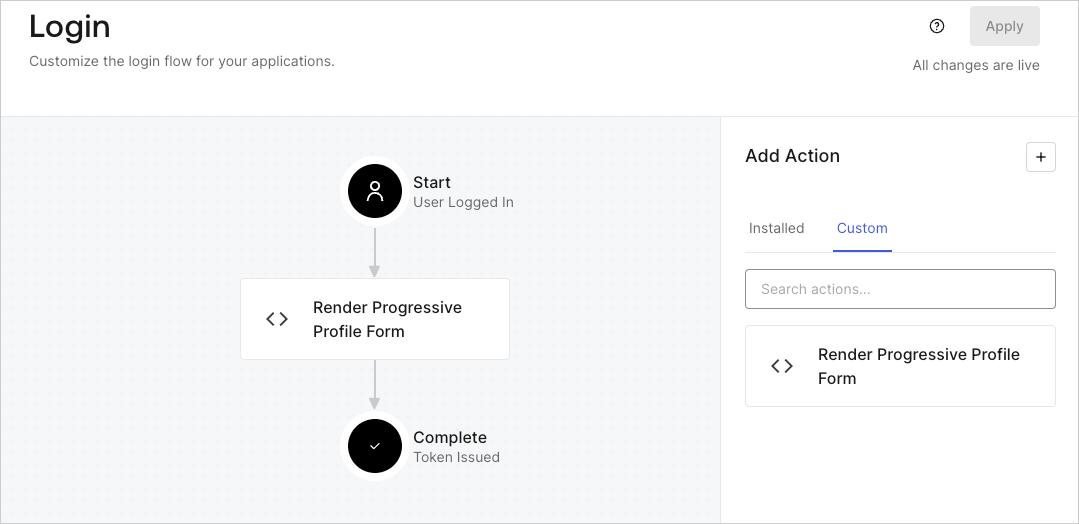
5. Glissez-déposez l’Action **Render Progressive Profile Form** dans le **Login flow**.
   <Frame>
     <img src="https://mintcdn.com/docs-staging-chore-actions-triggers-autoupdate/svbTezYfL3M9lian/docs/images/cdy7uua7fh8z/1QjjZdpTqTxx012UDN4xk9/99fba5ef4068a5688f1762eea7f42976/renderprogessiveprofile.png?fit=max&auto=format&n=svbTezYfL3M9lian&q=85&s=72cad96a1b1d48c1ec3dd30d33daa860" alt="Dashboard > Forms > Use Cases Progressive Profile Login Action" data-og-width="1079" width="1079" data-og-height="524" height="524" data-path="docs/images/cdy7uua7fh8z/1QjjZdpTqTxx012UDN4xk9/99fba5ef4068a5688f1762eea7f42976/renderprogessiveprofile.png" data-optimize="true" data-opv="3" srcset="https://mintcdn.com/docs-staging-chore-actions-triggers-autoupdate/svbTezYfL3M9lian/docs/images/cdy7uua7fh8z/1QjjZdpTqTxx012UDN4xk9/99fba5ef4068a5688f1762eea7f42976/renderprogessiveprofile.png?w=280&fit=max&auto=format&n=svbTezYfL3M9lian&q=85&s=85cf9a974aef02af1ab9b6d6eec63533 280w, https://mintcdn.com/docs-staging-chore-actions-triggers-autoupdate/svbTezYfL3M9lian/docs/images/cdy7uua7fh8z/1QjjZdpTqTxx012UDN4xk9/99fba5ef4068a5688f1762eea7f42976/renderprogessiveprofile.png?w=560&fit=max&auto=format&n=svbTezYfL3M9lian&q=85&s=d56489e43f743aa87a5e4a85cdcdca34 560w, https://mintcdn.com/docs-staging-chore-actions-triggers-autoupdate/svbTezYfL3M9lian/docs/images/cdy7uua7fh8z/1QjjZdpTqTxx012UDN4xk9/99fba5ef4068a5688f1762eea7f42976/renderprogessiveprofile.png?w=840&fit=max&auto=format&n=svbTezYfL3M9lian&q=85&s=6b94baa57b16b638aa2556d03fa736e3 840w, https://mintcdn.com/docs-staging-chore-actions-triggers-autoupdate/svbTezYfL3M9lian/docs/images/cdy7uua7fh8z/1QjjZdpTqTxx012UDN4xk9/99fba5ef4068a5688f1762eea7f42976/renderprogessiveprofile.png?w=1100&fit=max&auto=format&n=svbTezYfL3M9lian&q=85&s=9adace5384f9f9d2ec2681dddb4cc5fd 1100w, https://mintcdn.com/docs-staging-chore-actions-triggers-autoupdate/svbTezYfL3M9lian/docs/images/cdy7uua7fh8z/1QjjZdpTqTxx012UDN4xk9/99fba5ef4068a5688f1762eea7f42976/renderprogessiveprofile.png?w=1650&fit=max&auto=format&n=svbTezYfL3M9lian&q=85&s=de1c5c9d6ce513e45b5e0fdde17b8054 1650w, https://mintcdn.com/docs-staging-chore-actions-triggers-autoupdate/svbTezYfL3M9lian/docs/images/cdy7uua7fh8z/1QjjZdpTqTxx012UDN4xk9/99fba5ef4068a5688f1762eea7f42976/renderprogessiveprofile.png?w=2500&fit=max&auto=format&n=svbTezYfL3M9lian&q=85&s=4e4d69caa8e9ae40ddcedf4158389e50 2500w" />
   </Frame>
6. Sélectionnez **Apply**.

<h3 id="test-implementation">
  Tester la mise en œuvre
</h3>

Testez la mise en œuvre en suivant ces étapes :

1. Connectez-vous avec un utilisateur existant dont le nombre de connexions est supérieur à 2 et dont les attributs `user_metadata` `company_name` et `job_title` sont vides.
2. L’action post-login du Login flow affichera le formulaire et demandera ces renseignements.
3. Sélectionnez **Auth0 Dashboard > User Management > Users,** repérez l’utilisateur et vérifiez que les attributs `user_metadata` `company_name` et `job_title` contiennent bien des renseignements.
