> ## Documentation Index
> Fetch the complete documentation index at: https://docs-staging-chore-actions-triggers-autoupdate.mintlify.site/llms.txt
> Use this file to discover all available pages before exploring further.
> Learn how to configure router rules to create conditional logic jumps redirecting users between Form nodes.
# Routers
With Router nodes, you can add rules to Forms to create conditional logic jumps that redirect users between nodes. For example, a rule condition can be defined for a specific user\_metadata attribute to route a user to a specific step node or flow node.
* The router node automatically adds a Default case rule. If no rule conditions are met, the journey continues to the linked node.
* Rules are evaluated in the order placed in the router. When a rule condition is met, the journey continues to the linked node, and no other rule conditions are evaluated.
* You can add up to 10 rule conditions to the router node.
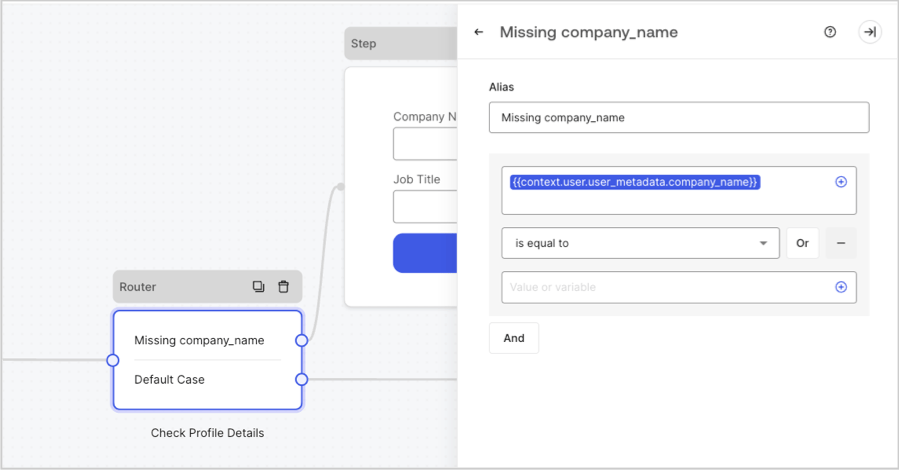 ## Add a router rule
To add a rule condition, follow these steps:
1. From the Form editor, select a Router node to open its settings.
2. Select **+ New Rule**.
3. Expand the newly created rule.
4. To label the rule, add an **Alias**.
5. Add a variable using the **+** icon.
6. Select the rule operator for the variable.
7. Add the value or variable the rule must meet.
8. Link the new rule to the corresponding step or flow node.
9. Select **Publish** to save.
* We recommend you define a rule alias to easily identify each rule in the router node.
* You can select from a number of rule operators to evaluate operands. For example, you can set first\_name `is equal to` Jane.
* Operands can be static values or variables.
* A rule can have `AND` and `OR` operators for further conditional logic evaluation.
* After adding a rule, make sure you link it to its desired node.
## Available rule operators
The rule operators are:
* `is greater than`
* `is greater or equal than`
* `is less than`
* `is less than or equal`
* `is equal to`
* `is different to`
* `includes`
* `does not include`
* `starts with`
* `ends with`
* `exists`
* `does not exist`
* `is null`
* `is not null`
* `has not value`
* `is true`
* `is false`
## Add a router rule
To add a rule condition, follow these steps:
1. From the Form editor, select a Router node to open its settings.
2. Select **+ New Rule**.
3. Expand the newly created rule.
4. To label the rule, add an **Alias**.
5. Add a variable using the **+** icon.
6. Select the rule operator for the variable.
7. Add the value or variable the rule must meet.
8. Link the new rule to the corresponding step or flow node.
9. Select **Publish** to save.
* We recommend you define a rule alias to easily identify each rule in the router node.
* You can select from a number of rule operators to evaluate operands. For example, you can set first\_name `is equal to` Jane.
* Operands can be static values or variables.
* A rule can have `AND` and `OR` operators for further conditional logic evaluation.
* After adding a rule, make sure you link it to its desired node.
## Available rule operators
The rule operators are:
* `is greater than`
* `is greater or equal than`
* `is less than`
* `is less than or equal`
* `is equal to`
* `is different to`
* `includes`
* `does not include`
* `starts with`
* `ends with`
* `exists`
* `does not exist`
* `is null`
* `is not null`
* `has not value`
* `is true`
* `is false`