> ## Documentation Index
> Fetch the complete documentation index at: https://docs-staging-chore-actions-triggers-autoupdate.mintlify.site/llms.txt
> Use this file to discover all available pages before exploring further.

> Learn how to configure an update policy form using Forms for Actions for users to review and accept new terms of service or consent updates.

# Use Cases: Configure an update policy form using Forms

<Card title="Before you start">
  1. Create a [Machine-to-Machine Application](/docs/get-started/auth0-overview/create-applications/machine-to-machine-apps) with the following scopes enabled:

  * `read:users`
  * `update:users`
  * `create:users`
  * `read:users_app_metadata`
  * `update:users_app_metadata`
  * `create:users_app_metadata`

  2. Add a [Vault connection](/docs/customize/forms/vault) using the M2M application credentials.
</Card>

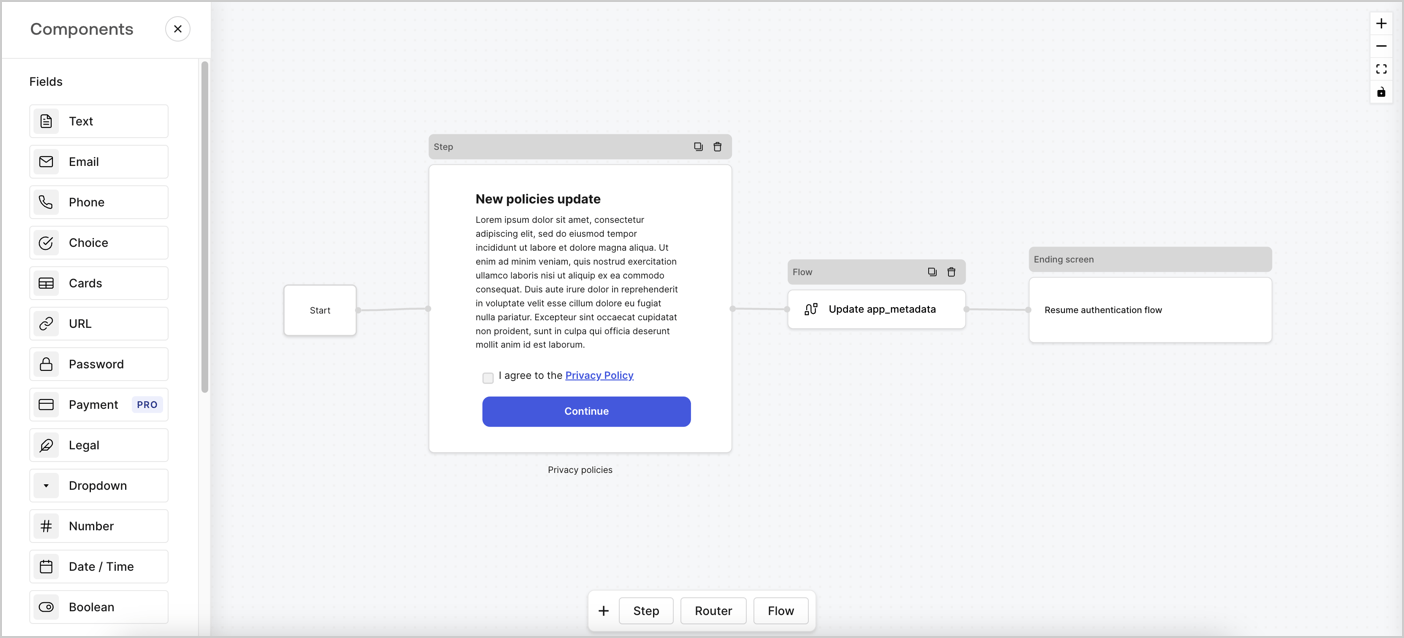
Forms for Actions allows you to create custom privacy policies flows and store the consent under the `app_metadata` object.
<Frame>
  <img src="https://mintcdn.com/docs-staging-chore-actions-triggers-autoupdate/Ovva-2VpgZv5LVbs/docs/images/cdy7uua7fh8z/6i68dMvHDTijfRmSgN1x8Q/ad900e7d4c0fb34645921435472b8684/privavy-policy-form.png?fit=max&auto=format&n=Ovva-2VpgZv5LVbs&q=85&s=7dce1c15c5f95092f5af28123f158b6f" alt="Dashboard > Actions > Forms > Privacy policy use case" data-og-width="1404" width="1404" data-og-height="638" height="638" data-path="docs/images/cdy7uua7fh8z/6i68dMvHDTijfRmSgN1x8Q/ad900e7d4c0fb34645921435472b8684/privavy-policy-form.png" data-optimize="true" data-opv="3" srcset="https://mintcdn.com/docs-staging-chore-actions-triggers-autoupdate/Ovva-2VpgZv5LVbs/docs/images/cdy7uua7fh8z/6i68dMvHDTijfRmSgN1x8Q/ad900e7d4c0fb34645921435472b8684/privavy-policy-form.png?w=280&fit=max&auto=format&n=Ovva-2VpgZv5LVbs&q=85&s=891f52c4cc960df3b08c8947524a484d 280w, https://mintcdn.com/docs-staging-chore-actions-triggers-autoupdate/Ovva-2VpgZv5LVbs/docs/images/cdy7uua7fh8z/6i68dMvHDTijfRmSgN1x8Q/ad900e7d4c0fb34645921435472b8684/privavy-policy-form.png?w=560&fit=max&auto=format&n=Ovva-2VpgZv5LVbs&q=85&s=e67df5d7898bddef1282ca7b40b51cc1 560w, https://mintcdn.com/docs-staging-chore-actions-triggers-autoupdate/Ovva-2VpgZv5LVbs/docs/images/cdy7uua7fh8z/6i68dMvHDTijfRmSgN1x8Q/ad900e7d4c0fb34645921435472b8684/privavy-policy-form.png?w=840&fit=max&auto=format&n=Ovva-2VpgZv5LVbs&q=85&s=4521d77c0fe00fa0b773d84fa7a4adfd 840w, https://mintcdn.com/docs-staging-chore-actions-triggers-autoupdate/Ovva-2VpgZv5LVbs/docs/images/cdy7uua7fh8z/6i68dMvHDTijfRmSgN1x8Q/ad900e7d4c0fb34645921435472b8684/privavy-policy-form.png?w=1100&fit=max&auto=format&n=Ovva-2VpgZv5LVbs&q=85&s=0d0a9a0d626aa8df46186ffcf0bc983e 1100w, https://mintcdn.com/docs-staging-chore-actions-triggers-autoupdate/Ovva-2VpgZv5LVbs/docs/images/cdy7uua7fh8z/6i68dMvHDTijfRmSgN1x8Q/ad900e7d4c0fb34645921435472b8684/privavy-policy-form.png?w=1650&fit=max&auto=format&n=Ovva-2VpgZv5LVbs&q=85&s=991961bc353f7352a27fd700571139ba 1650w, https://mintcdn.com/docs-staging-chore-actions-triggers-autoupdate/Ovva-2VpgZv5LVbs/docs/images/cdy7uua7fh8z/6i68dMvHDTijfRmSgN1x8Q/ad900e7d4c0fb34645921435472b8684/privavy-policy-form.png?w=2500&fit=max&auto=format&n=Ovva-2VpgZv5LVbs&q=85&s=5ae62d49b3e9e40aaffbe0de1437d031 2500w" />
</Frame>

The sections below outline how you can create an Update Policy form using nodes and flows, along with steps for adding your form to a [Post Login](/docs/customize/actions/explore-triggers/signup-and-login-triggers/login-trigger) Action.

## Create a form from scratch

Follow these steps to create a form to gather information:

1. Open the Form editor by selecting **Auth0 Dashboard > Actions > Forms.**
2. Select **Create Form** > **Start from scratch**.

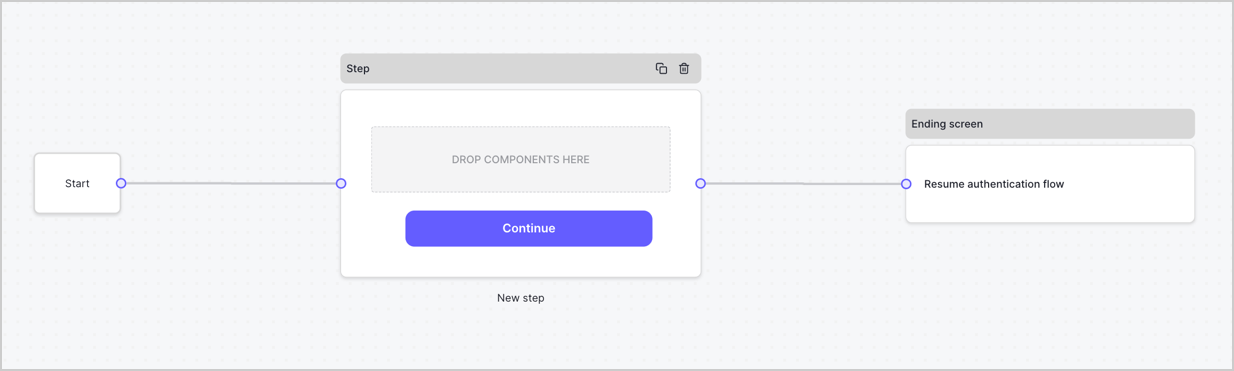
By default, a new form contains a Start node, a Step node, and an Ending screen node.
<Frame>
  <img src="https://mintcdn.com/docs-staging-chore-actions-triggers-autoupdate/2875Xj6H216hiJJY/docs/images/cdy7uua7fh8z/2TZ9jSjgEcARFpULI6hz4R/a4319a1bd482f2ee5cc23100fdb2f42c/New-form-Forms-for-action-use-case.png?fit=max&auto=format&n=2875Xj6H216hiJJY&q=85&s=1d6581c07d1d39ee5d8a108bcb617456" alt="Dashboard > Forms > Use Cases > Form" data-og-width="1234" width="1234" data-og-height="371" height="371" data-path="docs/images/cdy7uua7fh8z/2TZ9jSjgEcARFpULI6hz4R/a4319a1bd482f2ee5cc23100fdb2f42c/New-form-Forms-for-action-use-case.png" data-optimize="true" data-opv="3" srcset="https://mintcdn.com/docs-staging-chore-actions-triggers-autoupdate/2875Xj6H216hiJJY/docs/images/cdy7uua7fh8z/2TZ9jSjgEcARFpULI6hz4R/a4319a1bd482f2ee5cc23100fdb2f42c/New-form-Forms-for-action-use-case.png?w=280&fit=max&auto=format&n=2875Xj6H216hiJJY&q=85&s=e722854e03a9db8e9f6e7ba5a47eda0a 280w, https://mintcdn.com/docs-staging-chore-actions-triggers-autoupdate/2875Xj6H216hiJJY/docs/images/cdy7uua7fh8z/2TZ9jSjgEcARFpULI6hz4R/a4319a1bd482f2ee5cc23100fdb2f42c/New-form-Forms-for-action-use-case.png?w=560&fit=max&auto=format&n=2875Xj6H216hiJJY&q=85&s=94b54de13172631690500f2aa1c86cf2 560w, https://mintcdn.com/docs-staging-chore-actions-triggers-autoupdate/2875Xj6H216hiJJY/docs/images/cdy7uua7fh8z/2TZ9jSjgEcARFpULI6hz4R/a4319a1bd482f2ee5cc23100fdb2f42c/New-form-Forms-for-action-use-case.png?w=840&fit=max&auto=format&n=2875Xj6H216hiJJY&q=85&s=ba89f27421d0ed1883829e887a88c87d 840w, https://mintcdn.com/docs-staging-chore-actions-triggers-autoupdate/2875Xj6H216hiJJY/docs/images/cdy7uua7fh8z/2TZ9jSjgEcARFpULI6hz4R/a4319a1bd482f2ee5cc23100fdb2f42c/New-form-Forms-for-action-use-case.png?w=1100&fit=max&auto=format&n=2875Xj6H216hiJJY&q=85&s=84ff503dab747d7b39e01501441ec1ed 1100w, https://mintcdn.com/docs-staging-chore-actions-triggers-autoupdate/2875Xj6H216hiJJY/docs/images/cdy7uua7fh8z/2TZ9jSjgEcARFpULI6hz4R/a4319a1bd482f2ee5cc23100fdb2f42c/New-form-Forms-for-action-use-case.png?w=1650&fit=max&auto=format&n=2875Xj6H216hiJJY&q=85&s=0a52f9419ece80b5eae78624b51d12eb 1650w, https://mintcdn.com/docs-staging-chore-actions-triggers-autoupdate/2875Xj6H216hiJJY/docs/images/cdy7uua7fh8z/2TZ9jSjgEcARFpULI6hz4R/a4319a1bd482f2ee5cc23100fdb2f42c/New-form-Forms-for-action-use-case.png?w=2500&fit=max&auto=format&n=2875Xj6H216hiJJY&q=85&s=dc92210c9ce5f28252dd575f57d7733b 2500w" />
</Frame>

### Configure the Step node

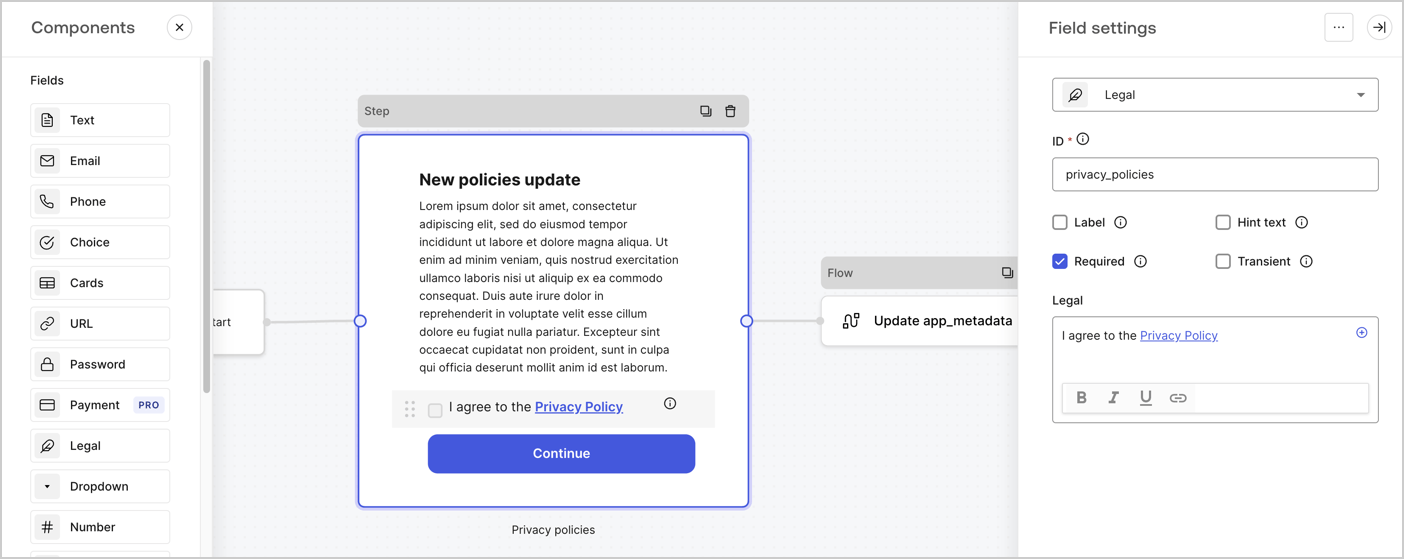
The Step node is the graphical interface visible to users. Add [Fields](/docs/customize/forms/nodes-and-components) to the Step node to collect the new agreement acceptance value by following these steps:

1. Drag a **Rich text** field from the **Components menu** into the **Step** node.

   * **Rich text**: Enter a description of your privacy policies updates.
   * Select **Save**.
2. Drag a **Legal** field into the **Step** node.

   * **ID**: Enter `privacy_policies`.
   * **Required**: Enable the checkbox.
   * **Legal**: Enter `I agree to the Privacy Policy`.
   * Select **Save**.
3. Select **Publish** to save.
<Frame>
  <img src="https://mintcdn.com/docs-staging-chore-actions-triggers-autoupdate/7a7j0c2HP7mu6vI_/docs/images/cdy7uua7fh8z/59zFFjQjAnjogkc2QGIqqJ/0ad66b1b636544122aa4e65968b76c2c/privacy-policy-step-node.png?fit=max&auto=format&n=7a7j0c2HP7mu6vI_&q=85&s=fff2e8206cbcd37ebb37a38e8be0a889" alt="Dashboard > Actions > Forms > Use case privacy policy step node" data-og-width="1404" width="1404" data-og-height="559" height="559" data-path="docs/images/cdy7uua7fh8z/59zFFjQjAnjogkc2QGIqqJ/0ad66b1b636544122aa4e65968b76c2c/privacy-policy-step-node.png" data-optimize="true" data-opv="3" srcset="https://mintcdn.com/docs-staging-chore-actions-triggers-autoupdate/7a7j0c2HP7mu6vI_/docs/images/cdy7uua7fh8z/59zFFjQjAnjogkc2QGIqqJ/0ad66b1b636544122aa4e65968b76c2c/privacy-policy-step-node.png?w=280&fit=max&auto=format&n=7a7j0c2HP7mu6vI_&q=85&s=3e06c582ad8d3018c3520518b671a3f9 280w, https://mintcdn.com/docs-staging-chore-actions-triggers-autoupdate/7a7j0c2HP7mu6vI_/docs/images/cdy7uua7fh8z/59zFFjQjAnjogkc2QGIqqJ/0ad66b1b636544122aa4e65968b76c2c/privacy-policy-step-node.png?w=560&fit=max&auto=format&n=7a7j0c2HP7mu6vI_&q=85&s=7d3d4d8a2de70bf86ef8da7fcfb32e14 560w, https://mintcdn.com/docs-staging-chore-actions-triggers-autoupdate/7a7j0c2HP7mu6vI_/docs/images/cdy7uua7fh8z/59zFFjQjAnjogkc2QGIqqJ/0ad66b1b636544122aa4e65968b76c2c/privacy-policy-step-node.png?w=840&fit=max&auto=format&n=7a7j0c2HP7mu6vI_&q=85&s=1d80f20ebe9f4fc6c63462043375af4c 840w, https://mintcdn.com/docs-staging-chore-actions-triggers-autoupdate/7a7j0c2HP7mu6vI_/docs/images/cdy7uua7fh8z/59zFFjQjAnjogkc2QGIqqJ/0ad66b1b636544122aa4e65968b76c2c/privacy-policy-step-node.png?w=1100&fit=max&auto=format&n=7a7j0c2HP7mu6vI_&q=85&s=92c649248554b8894f886e5cd251960b 1100w, https://mintcdn.com/docs-staging-chore-actions-triggers-autoupdate/7a7j0c2HP7mu6vI_/docs/images/cdy7uua7fh8z/59zFFjQjAnjogkc2QGIqqJ/0ad66b1b636544122aa4e65968b76c2c/privacy-policy-step-node.png?w=1650&fit=max&auto=format&n=7a7j0c2HP7mu6vI_&q=85&s=7a9d3c1d39861bc365adb92b8764970d 1650w, https://mintcdn.com/docs-staging-chore-actions-triggers-autoupdate/7a7j0c2HP7mu6vI_/docs/images/cdy7uua7fh8z/59zFFjQjAnjogkc2QGIqqJ/0ad66b1b636544122aa4e65968b76c2c/privacy-policy-step-node.png?w=2500&fit=max&auto=format&n=7a7j0c2HP7mu6vI_&q=85&s=b656492f53d11af7ba51f084de9e9ad6 2500w" />
</Frame>

### Configure the Flow node

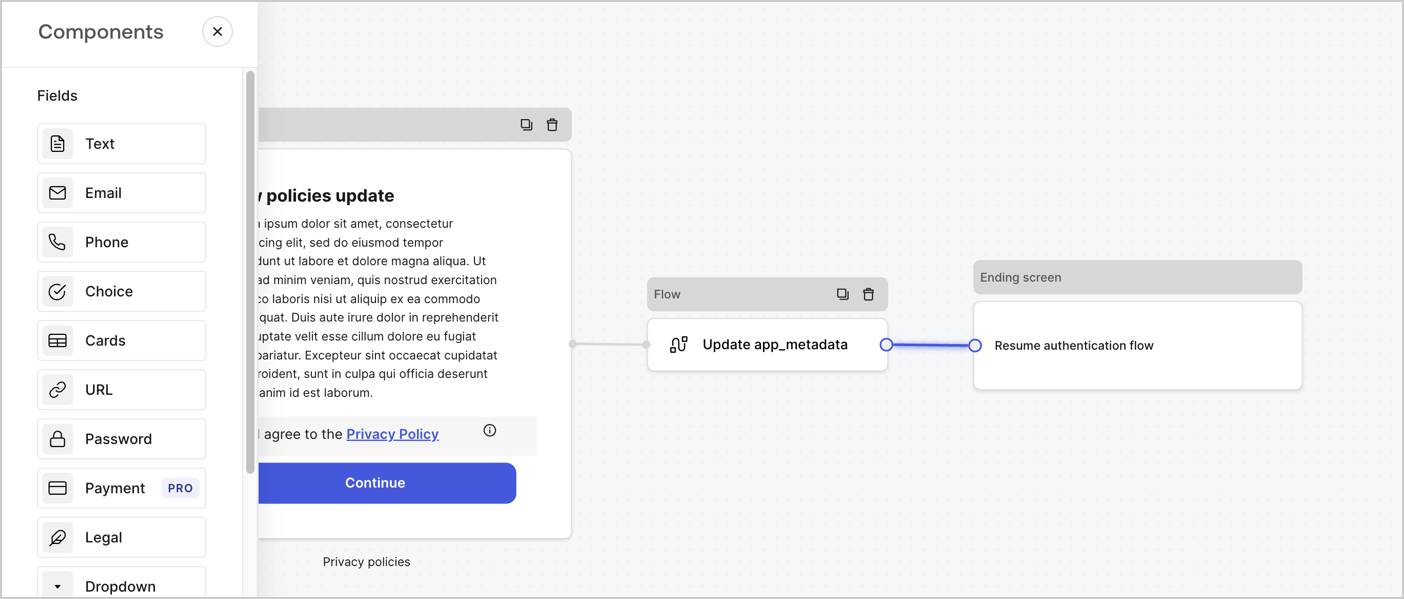
Add a **Flow** node after the **Step** node to update the `app_metadata` and resume the authentication flow by following these steps:

1. Select **Flow** from the bottom of the Form editor.
2. Remove the existing link between the **Step** and **Ending Screen** nodes.
3. Select the new **Flow** > **Click to add a flow** > **Create a new flow.**

   * Enter `Update app_metadata` in the **Name** field.
   * Select **Create**.
   * Select **Save**.
4. Link the **Flow** node to the **Step** and **Ending Screen** nodes as pictured below.
5. Select **Publish** to save.
<Frame>
  <img src="https://mintcdn.com/docs-staging-chore-actions-triggers-autoupdate/Ovva-2VpgZv5LVbs/docs/images/cdy7uua7fh8z/6YIkzm7SrpM9LW76AXuRzh/353c518fe82bbaa440836da1d83596d6/link-policies.png?fit=max&auto=format&n=Ovva-2VpgZv5LVbs&q=85&s=667ebbf7c42c51fc93d5253d6bd0ef2b" alt="Dashboard > Actions > Forms > Form" data-og-width="1404" width="1404" data-og-height="599" height="599" data-path="docs/images/cdy7uua7fh8z/6YIkzm7SrpM9LW76AXuRzh/353c518fe82bbaa440836da1d83596d6/link-policies.png" data-optimize="true" data-opv="3" srcset="https://mintcdn.com/docs-staging-chore-actions-triggers-autoupdate/Ovva-2VpgZv5LVbs/docs/images/cdy7uua7fh8z/6YIkzm7SrpM9LW76AXuRzh/353c518fe82bbaa440836da1d83596d6/link-policies.png?w=280&fit=max&auto=format&n=Ovva-2VpgZv5LVbs&q=85&s=06bba1ba83e6e6ecea87d83eecd4e943 280w, https://mintcdn.com/docs-staging-chore-actions-triggers-autoupdate/Ovva-2VpgZv5LVbs/docs/images/cdy7uua7fh8z/6YIkzm7SrpM9LW76AXuRzh/353c518fe82bbaa440836da1d83596d6/link-policies.png?w=560&fit=max&auto=format&n=Ovva-2VpgZv5LVbs&q=85&s=b2fb12364147436845756bf2ff4ae9fd 560w, https://mintcdn.com/docs-staging-chore-actions-triggers-autoupdate/Ovva-2VpgZv5LVbs/docs/images/cdy7uua7fh8z/6YIkzm7SrpM9LW76AXuRzh/353c518fe82bbaa440836da1d83596d6/link-policies.png?w=840&fit=max&auto=format&n=Ovva-2VpgZv5LVbs&q=85&s=f58269490a0c51bcfcabb10ef31d2fb9 840w, https://mintcdn.com/docs-staging-chore-actions-triggers-autoupdate/Ovva-2VpgZv5LVbs/docs/images/cdy7uua7fh8z/6YIkzm7SrpM9LW76AXuRzh/353c518fe82bbaa440836da1d83596d6/link-policies.png?w=1100&fit=max&auto=format&n=Ovva-2VpgZv5LVbs&q=85&s=45db8aded77534537507dfbe47b8129c 1100w, https://mintcdn.com/docs-staging-chore-actions-triggers-autoupdate/Ovva-2VpgZv5LVbs/docs/images/cdy7uua7fh8z/6YIkzm7SrpM9LW76AXuRzh/353c518fe82bbaa440836da1d83596d6/link-policies.png?w=1650&fit=max&auto=format&n=Ovva-2VpgZv5LVbs&q=85&s=7a47a2adfc65366c9238534c5cf36aac 1650w, https://mintcdn.com/docs-staging-chore-actions-triggers-autoupdate/Ovva-2VpgZv5LVbs/docs/images/cdy7uua7fh8z/6YIkzm7SrpM9LW76AXuRzh/353c518fe82bbaa440836da1d83596d6/link-policies.png?w=2500&fit=max&auto=format&n=Ovva-2VpgZv5LVbs&q=85&s=f3a20e9fd3689d3000d1c72b8bd63d12 2500w" />
</Frame>

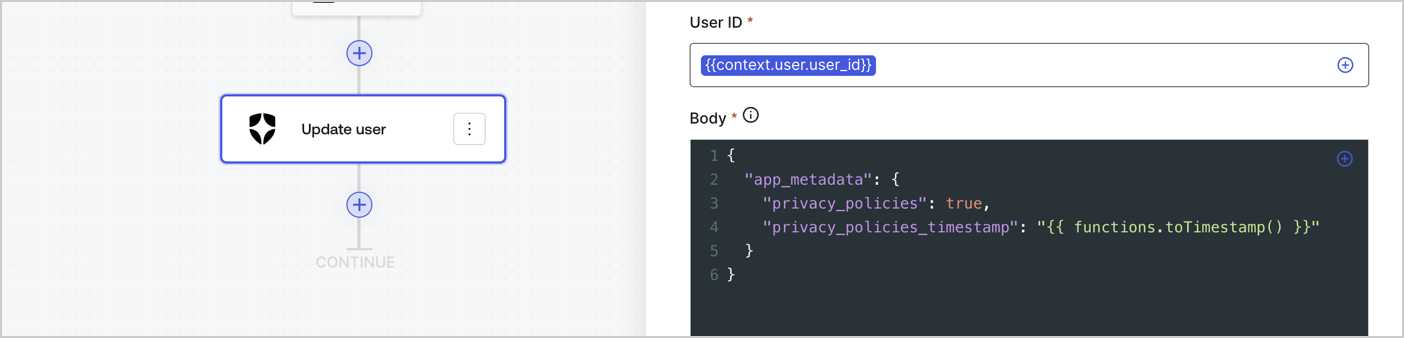
Add an Auth0 Update user action to the flow by following these steps:

1. Select the **Flow** **Update app\_metadata** > **Edit flow** to open the Flow editor in a new tab.
2. Below the StartAction, select the **+** icon to add an **Update user** action. Complete the fields below, then select **Save** to continue.

   * **Connection**: Select from the dropdown the Vault connection to your M2M application.

   * **User ID**: Enter `{{context.user.user_id}}`.

   * **Body**: Copy and paste the following code to update the app\_metadata with the privacy\_policies and privacy\_policies\_timestamp properties.

     ```text lines theme={null}
     {
       "app_metadata": {
         "privacy_policies": true,
         "privacy_policies_timestamp": "{{ functions.toTimestamp() }}"
       }
     }
     ```

   * Select **Save**.
3. Select **Publish** to save.
<Frame>
  <img src="https://mintcdn.com/docs-staging-chore-actions-triggers-autoupdate/ZZ3JsDPfv17hlGc6/docs/images/cdy7uua7fh8z/CvMNIwWrOUwaFW4X3G28p/1fb70ae57a20749d9ffaaba8dc0b7e26/update-user-privacy.png?fit=max&auto=format&n=ZZ3JsDPfv17hlGc6&q=85&s=849f819c5f5e5d29dcd655c551b1d66d" alt="Dashboard > Actions > Forms > User case privacy policy code" data-og-width="1404" width="1404" data-og-height="338" height="338" data-path="docs/images/cdy7uua7fh8z/CvMNIwWrOUwaFW4X3G28p/1fb70ae57a20749d9ffaaba8dc0b7e26/update-user-privacy.png" data-optimize="true" data-opv="3" srcset="https://mintcdn.com/docs-staging-chore-actions-triggers-autoupdate/ZZ3JsDPfv17hlGc6/docs/images/cdy7uua7fh8z/CvMNIwWrOUwaFW4X3G28p/1fb70ae57a20749d9ffaaba8dc0b7e26/update-user-privacy.png?w=280&fit=max&auto=format&n=ZZ3JsDPfv17hlGc6&q=85&s=a25df9f3d9ed2d4a31cdf819d9c06732 280w, https://mintcdn.com/docs-staging-chore-actions-triggers-autoupdate/ZZ3JsDPfv17hlGc6/docs/images/cdy7uua7fh8z/CvMNIwWrOUwaFW4X3G28p/1fb70ae57a20749d9ffaaba8dc0b7e26/update-user-privacy.png?w=560&fit=max&auto=format&n=ZZ3JsDPfv17hlGc6&q=85&s=3e83197e69fe804b2b66e3ad9468b380 560w, https://mintcdn.com/docs-staging-chore-actions-triggers-autoupdate/ZZ3JsDPfv17hlGc6/docs/images/cdy7uua7fh8z/CvMNIwWrOUwaFW4X3G28p/1fb70ae57a20749d9ffaaba8dc0b7e26/update-user-privacy.png?w=840&fit=max&auto=format&n=ZZ3JsDPfv17hlGc6&q=85&s=aed8c2c74e2844de7c56070bcb2a31f1 840w, https://mintcdn.com/docs-staging-chore-actions-triggers-autoupdate/ZZ3JsDPfv17hlGc6/docs/images/cdy7uua7fh8z/CvMNIwWrOUwaFW4X3G28p/1fb70ae57a20749d9ffaaba8dc0b7e26/update-user-privacy.png?w=1100&fit=max&auto=format&n=ZZ3JsDPfv17hlGc6&q=85&s=0878d06c555e32487e4d058f29e6a05c 1100w, https://mintcdn.com/docs-staging-chore-actions-triggers-autoupdate/ZZ3JsDPfv17hlGc6/docs/images/cdy7uua7fh8z/CvMNIwWrOUwaFW4X3G28p/1fb70ae57a20749d9ffaaba8dc0b7e26/update-user-privacy.png?w=1650&fit=max&auto=format&n=ZZ3JsDPfv17hlGc6&q=85&s=5ea93125f6549ffa3132b62b3d6c41f3 1650w, https://mintcdn.com/docs-staging-chore-actions-triggers-autoupdate/ZZ3JsDPfv17hlGc6/docs/images/cdy7uua7fh8z/CvMNIwWrOUwaFW4X3G28p/1fb70ae57a20749d9ffaaba8dc0b7e26/update-user-privacy.png?w=2500&fit=max&auto=format&n=ZZ3JsDPfv17hlGc6&q=85&s=6e47eac941d9446d9b1a08d8be5d83b1 2500w" />
</Frame>

<Callout icon="file-lines" color="#0EA5E9" iconType="regular">
  The flow **Update app\_metadata** adds a `privacy_policies true` value to the app`_metadata` object and also generates a timestamp with a [helper function.](/docs/customize/forms/variables)
</Callout>

## Retrieve the form render code

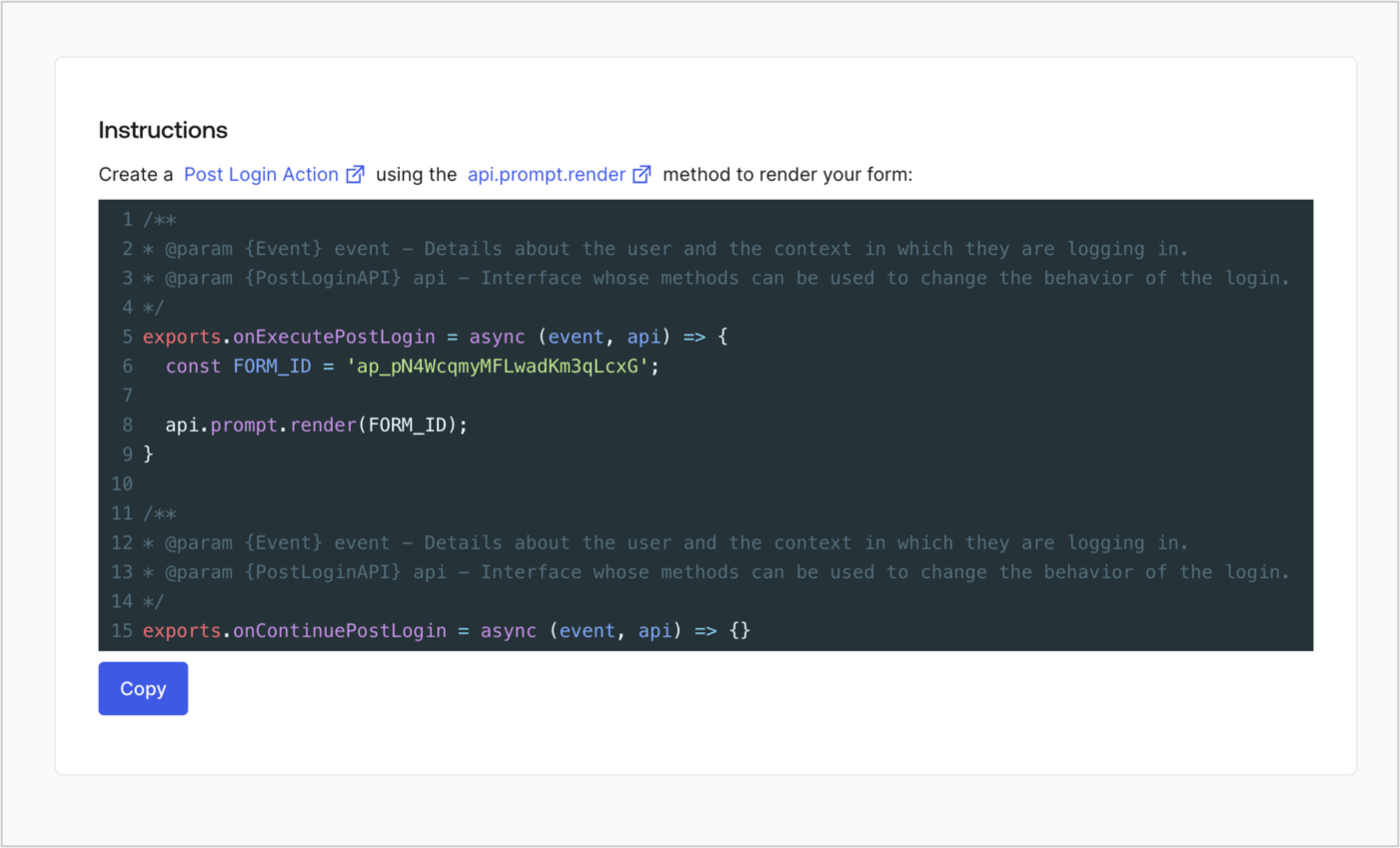
Retrieve your form render code to visually render the form with a custom Post Login Action by following these steps:

* From the Form editor, select **`<> Render`**.
* Select **Copy**.
<Frame>
  <img src="https://mintcdn.com/docs-staging-chore-actions-triggers-autoupdate/OzH0n0WvmYgnSH8x/docs/images/cdy7uua7fh8z/2EIUzc539sq9lwoTKbjoJv/496a864c0fc44a782c9cadca119dbfb0/embed.png?fit=max&auto=format&n=OzH0n0WvmYgnSH8x&q=85&s=00b0a20cb878010049ad112bdd5bd3a9" alt="Dashboard > Actions > Forms > Form > Embed" data-og-width="1400" width="1400" data-og-height="848" height="848" data-path="docs/images/cdy7uua7fh8z/2EIUzc539sq9lwoTKbjoJv/496a864c0fc44a782c9cadca119dbfb0/embed.png" data-optimize="true" data-opv="3" srcset="https://mintcdn.com/docs-staging-chore-actions-triggers-autoupdate/OzH0n0WvmYgnSH8x/docs/images/cdy7uua7fh8z/2EIUzc539sq9lwoTKbjoJv/496a864c0fc44a782c9cadca119dbfb0/embed.png?w=280&fit=max&auto=format&n=OzH0n0WvmYgnSH8x&q=85&s=097692671343eae8df931c3c66a9ec3e 280w, https://mintcdn.com/docs-staging-chore-actions-triggers-autoupdate/OzH0n0WvmYgnSH8x/docs/images/cdy7uua7fh8z/2EIUzc539sq9lwoTKbjoJv/496a864c0fc44a782c9cadca119dbfb0/embed.png?w=560&fit=max&auto=format&n=OzH0n0WvmYgnSH8x&q=85&s=5ed3f762c1bb35123f370927fdb2cb1f 560w, https://mintcdn.com/docs-staging-chore-actions-triggers-autoupdate/OzH0n0WvmYgnSH8x/docs/images/cdy7uua7fh8z/2EIUzc539sq9lwoTKbjoJv/496a864c0fc44a782c9cadca119dbfb0/embed.png?w=840&fit=max&auto=format&n=OzH0n0WvmYgnSH8x&q=85&s=b99d936671c76996256d601f03424200 840w, https://mintcdn.com/docs-staging-chore-actions-triggers-autoupdate/OzH0n0WvmYgnSH8x/docs/images/cdy7uua7fh8z/2EIUzc539sq9lwoTKbjoJv/496a864c0fc44a782c9cadca119dbfb0/embed.png?w=1100&fit=max&auto=format&n=OzH0n0WvmYgnSH8x&q=85&s=af0cc57cd9543cab6263f94037d93c48 1100w, https://mintcdn.com/docs-staging-chore-actions-triggers-autoupdate/OzH0n0WvmYgnSH8x/docs/images/cdy7uua7fh8z/2EIUzc539sq9lwoTKbjoJv/496a864c0fc44a782c9cadca119dbfb0/embed.png?w=1650&fit=max&auto=format&n=OzH0n0WvmYgnSH8x&q=85&s=7f53e58535079db375b29c02fbb78916 1650w, https://mintcdn.com/docs-staging-chore-actions-triggers-autoupdate/OzH0n0WvmYgnSH8x/docs/images/cdy7uua7fh8z/2EIUzc539sq9lwoTKbjoJv/496a864c0fc44a782c9cadca119dbfb0/embed.png?w=2500&fit=max&auto=format&n=OzH0n0WvmYgnSH8x&q=85&s=432ec66b09aeba11644ccea02dab89d8 2500w" />
</Frame>

## Create a Post Login Action

Create a post-login Action to render your form by following these steps:

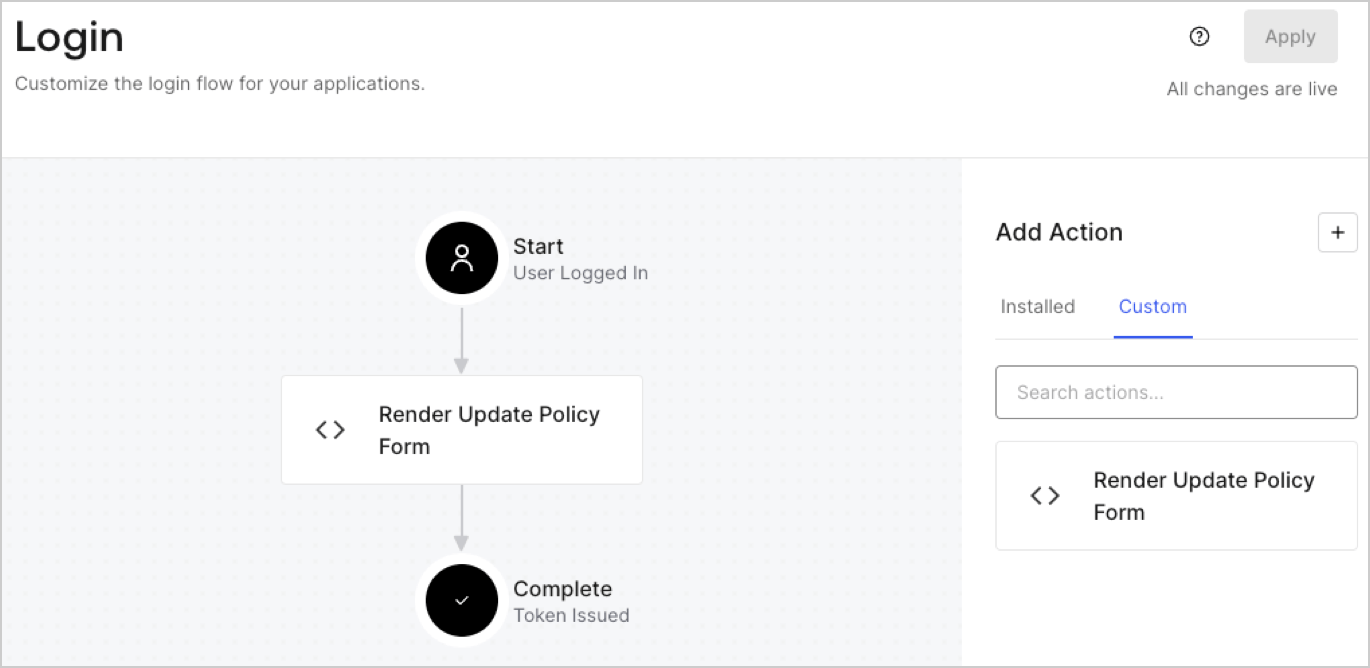
1. Navigate to **Auth0 Dashboard > Actions > Flows > Login.**
2. Select the **+** icon and Select **Build from scratch**:

   * **Name**: Enter `Render Update Policy Form`.
   * **Trigger**: Select `Login / Post Login`.
   * **Runtime**: Select the recommended version.
3. Select **Create**.

To configure the post-login Action:

1. Delete the existing code from the Code editor.
2. Paste the form render code into the Code editor.
3. Edit the code to define the conditional logic that will render the form.

   ```javascript lines theme={null}
   /**
   * @param {Event} event - Details about the user and the context in which they are logging in.
   * @param {PostLoginAPI} api - Interface whose methods can be used to change the behavior of the login.
   */
   exports.onExecutePostLogin = async (event, api) => {
     const FORM_ID = 'REPLACE_WITH_YOUR_FORM_ID';

     if (event.user.app_metadata.privacy_policies !== true) {
       api.prompt.render(FORM_ID);
     }
   }

   exports.onContinuePostLogin = async (event, api) => { }
   ```

   <Callout icon="file-lines" color="#0EA5E9" iconType="regular">
     The example code above will render the form when a user is missing the app metadata `privacy_policies` property.
   </Callout>
4. Select **Deploy.**
5. Drag and Drop the **Render Update Policy Form** Action to the **Login** flow.
   <Frame>
     <img src="https://mintcdn.com/docs-staging-chore-actions-triggers-autoupdate/8zoqTdl8NtorhrHm/docs/images/cdy7uua7fh8z/5TOwDgevZsBqd7yZynUYWU/41ca909dc3007aed4f40ff794a05efa5/postlogin.png?fit=max&auto=format&n=8zoqTdl8NtorhrHm&q=85&s=31193d1f5179a98a246cc087f3d1e0a8" alt="Dashboard > Forms > Use Case > Render update policy form login action" data-og-width="1370" width="1370" data-og-height="668" height="668" data-path="docs/images/cdy7uua7fh8z/5TOwDgevZsBqd7yZynUYWU/41ca909dc3007aed4f40ff794a05efa5/postlogin.png" data-optimize="true" data-opv="3" srcset="https://mintcdn.com/docs-staging-chore-actions-triggers-autoupdate/8zoqTdl8NtorhrHm/docs/images/cdy7uua7fh8z/5TOwDgevZsBqd7yZynUYWU/41ca909dc3007aed4f40ff794a05efa5/postlogin.png?w=280&fit=max&auto=format&n=8zoqTdl8NtorhrHm&q=85&s=ce4aadf100733e5288e341fec08fec10 280w, https://mintcdn.com/docs-staging-chore-actions-triggers-autoupdate/8zoqTdl8NtorhrHm/docs/images/cdy7uua7fh8z/5TOwDgevZsBqd7yZynUYWU/41ca909dc3007aed4f40ff794a05efa5/postlogin.png?w=560&fit=max&auto=format&n=8zoqTdl8NtorhrHm&q=85&s=601ced1aaa4d7e235328f7eeb733346c 560w, https://mintcdn.com/docs-staging-chore-actions-triggers-autoupdate/8zoqTdl8NtorhrHm/docs/images/cdy7uua7fh8z/5TOwDgevZsBqd7yZynUYWU/41ca909dc3007aed4f40ff794a05efa5/postlogin.png?w=840&fit=max&auto=format&n=8zoqTdl8NtorhrHm&q=85&s=5997700ee708cdc7076b51b4c8f6c047 840w, https://mintcdn.com/docs-staging-chore-actions-triggers-autoupdate/8zoqTdl8NtorhrHm/docs/images/cdy7uua7fh8z/5TOwDgevZsBqd7yZynUYWU/41ca909dc3007aed4f40ff794a05efa5/postlogin.png?w=1100&fit=max&auto=format&n=8zoqTdl8NtorhrHm&q=85&s=4fa55de22364da86fb15b2d691f1263d 1100w, https://mintcdn.com/docs-staging-chore-actions-triggers-autoupdate/8zoqTdl8NtorhrHm/docs/images/cdy7uua7fh8z/5TOwDgevZsBqd7yZynUYWU/41ca909dc3007aed4f40ff794a05efa5/postlogin.png?w=1650&fit=max&auto=format&n=8zoqTdl8NtorhrHm&q=85&s=20af29040b941b83734223613613f6f5 1650w, https://mintcdn.com/docs-staging-chore-actions-triggers-autoupdate/8zoqTdl8NtorhrHm/docs/images/cdy7uua7fh8z/5TOwDgevZsBqd7yZynUYWU/41ca909dc3007aed4f40ff794a05efa5/postlogin.png?w=2500&fit=max&auto=format&n=8zoqTdl8NtorhrHm&q=85&s=adf7f03cc4dd90e590031474f6b22385 2500w" />
   </Frame>
6. Select **Apply.**

### Test implementation

Test the implementation by following these steps:

1. Log in with an existing user whose app`_metadata` attribute `privacy_policies` does not have a value.
2. The post-login Action in the Login flow will render the form and prompt for acceptance.
3. Select **Auth0 Dashboard > User Management > Users,** locate the user and verify that the `app_metadata` attribute `privacy_policies` contains a `true` value and a timestamp.
